
Blog

Our latest posts

HOW TO: Run Apple System 7 using Mini vMac on a Raspberry Pi 5 in 2026

SHARE
Picture of Alex
Web Designer & Developer and Elementor expert with 15+ years of experience, I commit to providing the highest quality web services and technical support to my clients. My resume includes the United Nations, Civil Society Organisations and Private Sector clients across Europe, the Middle East and Africa.
You might also be interested in

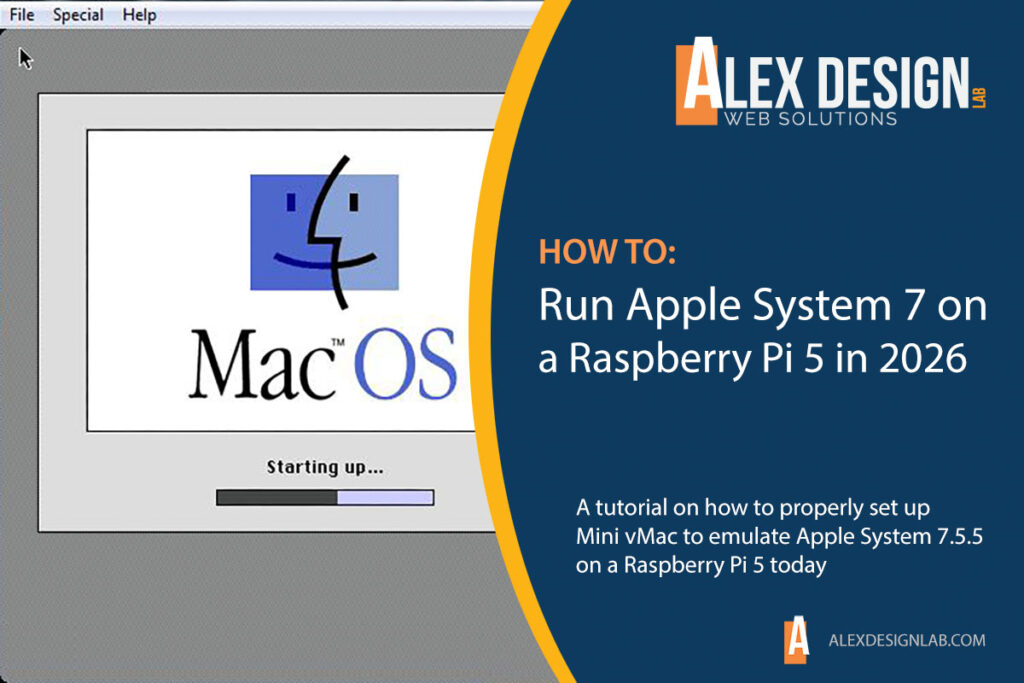
In 2026, setting up Mini vMac on a Raspberry Pi 5 requires a manual compilation approach. Pre-compiled 32-bit ARM binaries found on older sites, including gryphel.com, typically fail to run on the Pi 5’s 64-bit architecture (ARM64). Luckily, there is a way to do it and play your favourite games using the latest Raspberry Pi hardware and software. Follow the instructions below to set up your own system. This tutorial is for intermediate-level users, familiar with Terminal and how to run commands. You can also purchase the ready-made solution.

Step 1: Prepare the Host OS

Flash OS: Use Raspberry Pi Imager to install Raspberry Pi OS (64-bit) on your microSD card.

Once ready, insert your micro SD card in your Raspberry Pi 5 and power it on. Make sure the desktop is fully loaded and connected to the internet. First of all, we need to update the system. Open the Terminal, and run:

				
					sudo apt update && sudo apt upgrade -y
sudo apt install git gcc libsdl2-dev -y


Step 2: Compile Mini vMac for ARM64

To ensure compatibility with the Raspberry Pi 5’s hardware, you must compile from source using a setup tool. 

2.1 Download Source: Clone the most recent maintained repository:

				
					git clone https://github.com/minivmac/minivmac.git
cd minivmac


2.2 Generate Makefile: Use the setup tool with flags specifically for 64-bit ARM Linux:

				
					gcc setup/tool.c -o setup_t
./setup_t -t larm -cpu a64 -m II -api sd2 -hres 800 -vres 600 -fullscreen 1 > setup.sh


2.3 Build:

				
					bash -x ./setup.sh
make clean
make -j $(nproc)


To make changes to the setup (screen resolution, etc) run: ./setup_t…  command line in step 2.2 and go through the build phase afterwards.

Step 3: File Setup

ROM File: Obtain a Macintosh II ROM and rename it exactly to MacII.ROM. Place it in the same folder as the compiled binary. 

Disk Image: Place your Mac OS 7 bootable disk image (e.g., disk1.dsk) in the same directory. 

Your Mini vMac is ready. Click on  minivmac to start it.

Step 4: Configure Autorun (Optional)

To launch Mini vMac automatically upon booting into the desktop: 

4.1 Create Autostart Directory:

				
					mkdir -p ~/.config/autostart


4.2 Create Desktop Entry:

				
					~/.config/autostart/minivmac.desktop


4.3 Add Configuration:

				
					[Desktop Entry]
Type=Application
Name=Mini vMac
Exec=/home/pi/minivmac/minivmac /home/pi/minivmac/disk1.dsk
Terminal=false


4.4 Save and Exit: (Ctrl+O, Enter, Ctrl+X)

Step 5: Removing Splash and Logos at the BOOT Screen (Optional)

5.1 Removing splash screen (Logo)

Go to Menu / Preferences / Control Centre and navigate to System

  • Console Auto Login: YES
  • Desktop Auto Login: YES
  • Splash Screen: NO


5.2 Removing 4 logos on top of the screen

				
					sudo nano /boot/firmware/cmdline.txt


Add at the end of the line (on the same line):

				
					quiet loglevel=3 logo.nologo vt.global_cursor_default=0


5.3 Removing the rainbow splash screen

				
					sudo nano /boot/firmware/config.txt


Add at the very bottom on a new line:

				
					disable_splash=1


Key Performance Tips for 2026 

  • Emulated Speed: Unlike Basilisk II, Mini vMac by default emulates at original hardware speed. To speed it up, press Ctrl+M (Magnify) or use the -speed z flag during compilation.
  • Exiting: To quit the emulator, press Ctrl+H to bring up the menu, then Q to quit.
  • Resolution: Because the Pi 5 handles high resolutions easily, you can re-compile with -hres 1024 -vres 768 for a larger “Macintosh II” workspace. 

Ready-made Solution

If you’re uncomfortable using Terminal or don’t want to spend your time on this, consider purchasing a ready-made solution from the link below:

© 2026 Alex Design Lab. All rights reserved

Privacy Policy

Who we are

ALEX DESIGN LAB
https://alexdesignlab.com

Comments

When visitors leave comments on the site we collect the data shown in the comments form, and also the visitor’s IP address and browser user agent string to help spam detection.
An anonymised string created from your email address (also called a hash) may be provided to the Gravatar service to see if you are using it. The Gravatar service privacy policy is available here: https://automattic.com/privacy. After approval of your comment, your profile picture is visible to the public in the context of your comment.

Media

If you upload images to the website, you should avoid uploading images with embedded location data (EXIF GPS) included. Visitors to the website can download and extract any location data from images on the website.

Cookies

If you leave a comment on our site you may opt-in to saving your name, email address and website in cookies. These are for your convenience so that you do not have to fill in your details again when you leave another comment. These cookies will last for one year.
If you visit our login page, we will set a temporary cookie to determine if your browser accepts cookies. This cookie contains no personal data and is discarded when you close your browser.
When you log in, we will also set up several cookies to save your login information and your screen display choices. Login cookies last for two days, and screen options cookies last for a year. If you select “Remember Me”, your login will persist for two weeks. If you log out of your account, the login cookies will be removed.
If you edit or publish an article, an additional cookie will be saved in your browser. This cookie includes no personal data and simply indicates the post ID of the article you just edited. It expires after 1 day.

Embedded content from other websites

Articles on this site may include embedded content (e.g. videos, images, articles, etc.). Embedded content from other websites behaves in the exact same way as if the visitor has visited the other website.
These websites may collect data about you, use cookies, embed additional third-party tracking, and monitor your interaction with that embedded content, including tracking your interaction with the embedded content if you have an account and are logged in to that website.

Who we share your data with

If you request a password reset, your IP address will be included in the reset email.

How long we retain your data

If you leave a comment, the comment and its metadata are retained indefinitely. This is so we can recognise and approve any follow-up comments automatically instead of holding them in a moderation queue.
For users that register on our website (if any), we also store the personal information they provide in their user profile. All users can see, edit, or delete their personal information at any time (except they cannot change their username). Website administrators can also see and edit that information.

What rights you have over your data

If you have an account on this site, or have left comments, you can request to receive an exported file of the personal data we hold about you, including any data you have provided to us. You can also request that we erase any personal data we hold about you. This does not include any data we are obliged to keep for administrative, legal, or security purposes.

Where we send your data

Visitor comments may be checked through an automated spam detection service.